Configure registry access
4 minute read
A registry admin can configure registry roles, add users, or remove users from a registry by configuring the registry’s settings.
Manage users
Add a user or a team
Registry admins can add individual users or entire teams to a registry. To add a user or team to a registry:
- Navigate to the Registry at https://wandb.ai/registry/.
- Select the registry you want to add a user or team to.
- Click on the gear icon on the upper right hand corner to access the registry settings.
- In the Registry access section, click Add access.
- Specify one or more user names, emails, or the team names to the Include users and teams field.
- Click Add access.
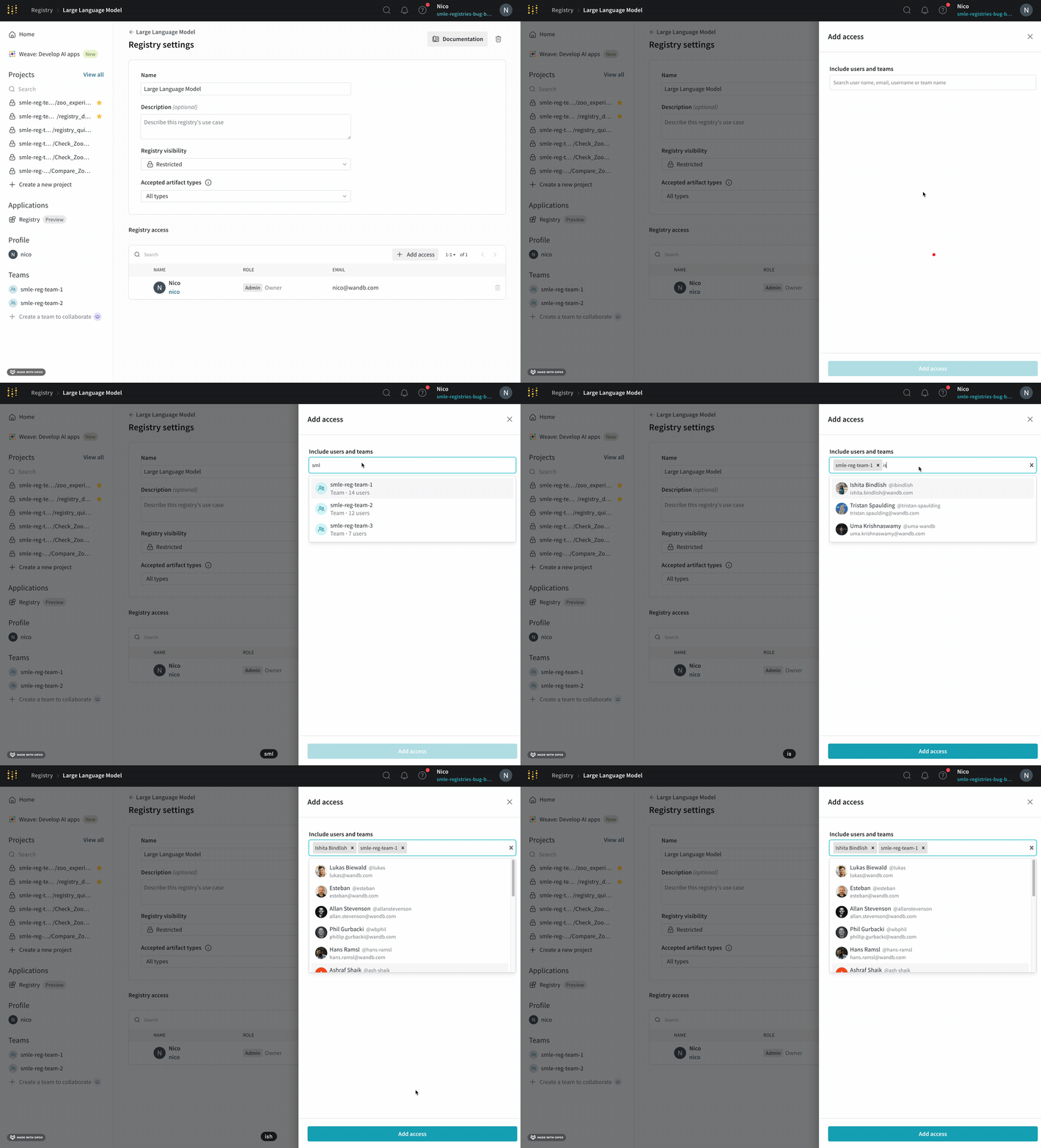
Learn more about configuring user roles in a registry, or Registry role permissions .
Remove a user or team
A registry admin can remove individual users or entire teams from a registry. To remove a user or team from a registry:
- Navigate to the Registry at https://wandb.ai/registry/.
- Select the registry you want to remove a user from.
- Click on the gear icon on the upper right hand corner to access the registry settings.
- Navigate to the Registry access section and type in the username, email, or team you want to remove.
- Click the Delete button.
Registry roles
Each user in a registry has a registry role, which determines what they can do in that registry.
W&B automatically assigns a default registry role to a user or team when they are added to a registry.
| Entity | Default registry role |
|---|---|
| Team | Viewer |
| User (non admin) | Viewer |
| Org admin | Admin |
A registry admin can assign or modify roles for users and teams in a registry. See Configure user roles in a registry for more information.
W&B role types
There are two different types of roles in W&B: Team roles and Registry roles.
Your role in a team has no impact or relationship to your role in any registry.
The proceeding table lists the different roles a user can have and their permissions:
| Permission | Permission Group | Viewer | Member | Admin |
|---|---|---|---|---|
| View a collection’s details | Read | X | X | X |
| View a linked artifact’s details | Read | X | X | X |
| Usage: Consume an artifact in a registry with use_artifact | Read | X | X | X |
| Download a linked artifact | Read | X | X | X |
| Download files from an artifact’s file viewer | Read | X | X | X |
| Search a registry | Read | X | X | X |
| View a registry’s settings and user list | Read | X | X | X |
| Create a new automation for a collection | Create | X | X | |
| Turn on Slack notifications for new version being added | Create | X | X | |
| Create a new collection | Create | X | X | |
| Create a new custom registry | Create | X | X | |
| Edit collection card (description) | Update | X | X | |
| Edit linked artifact description | Update | X | X | |
| Add or delete a collection’s tag | Update | X | X | |
| Add or delete an alias from a linked artifact | Update | X | X | |
| Link a new artifact | Update | X | X | |
| Edit allowed types list for a registry | Update | X | X | |
| Edit custom registry name | Update | X | X | |
| Delete a collection | Delete | X | X | |
| Delete an automation | Delete | X | X | |
| Unlink an artifact from a registry | Delete | X | X | |
| Edit accepted artifact types for a registry | Admin | X | ||
| Change registry visibility (Organization or Restricted) | Admin | X | ||
| Add users to a registry | Admin | X | ||
| Assign or change a user’s role in a registry | Admin | X |
Inherited permissions
A user’s permission in a registry depends on the highest level of privilege assigned to that user, whether individually or by team membership.
For example, suppose a registry admin adds a user called Nico to Registry A and assigns them a Viewer registry role. A registry admin then adds a team called Foundation Model Team to Registry A and assigns Foundation Model Team a Member registry role.
Nico is a member of the Foundation Model Team, which is a Member of the Registry. Because Member has more permission than Viewer, W&B grants Nico the Member role.
The proceeding table demonstrates the highest level of permission in the event of a conflict between a user’s individual registry role and the registry role of a team they are a member of:
| Team registry role | Individual registry role | Inherited registry role |
|---|---|---|
| Viewer | Viewer | Viewer |
| Member | Viewer | Member |
| Admin | Viewer | Admin |
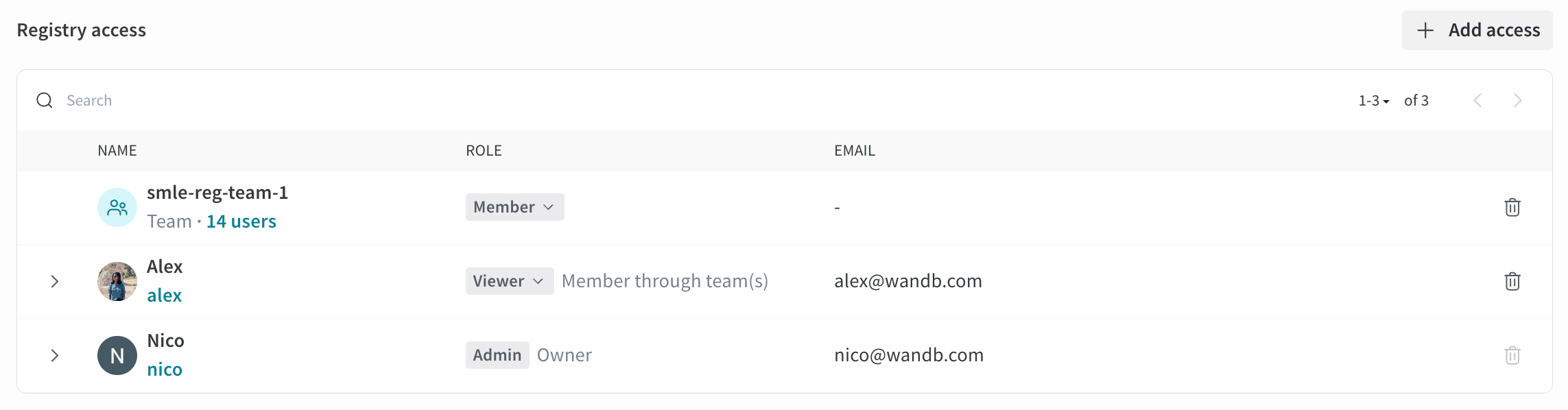
If there is a conflict, W&B displays the highest level of permissions next to the name of the user.
For example, in the proceeding image Alex inherits Member role privileges because they are a member of the smle-reg-team-1 team.
Configure registry roles
- Navigate to the Registry at https://wandb.ai/registry/.
- Select the registry you want to configure.
- Click the gear icon on the upper right hand corner.
- Scroll to the Registry members and roles section.
- Within the Member field, search for the user or team you want to edit permissions for.
- In the Registry role column, click the user’s role.
- From the dropdown, select the role you want to assign to the user.
Feedback
Was this page helpful?
Glad to hear it! Please tell us how we can improve.
Sorry to hear that. Please tell us how we can improve.